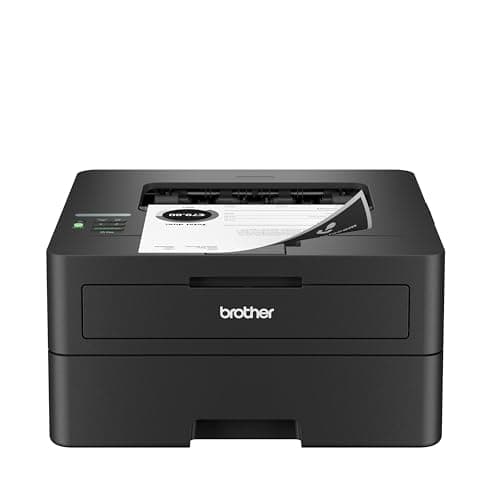
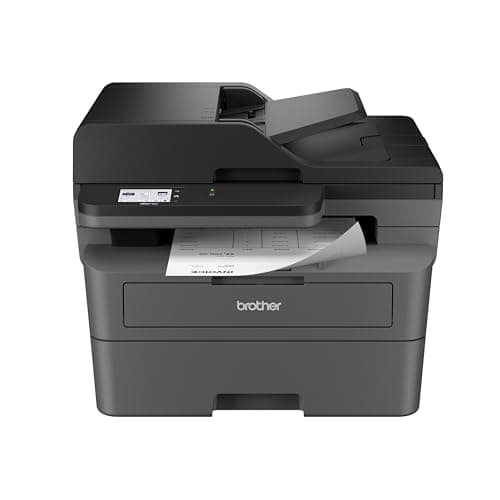
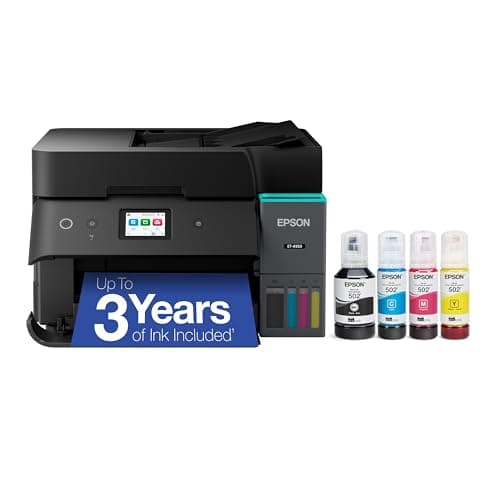
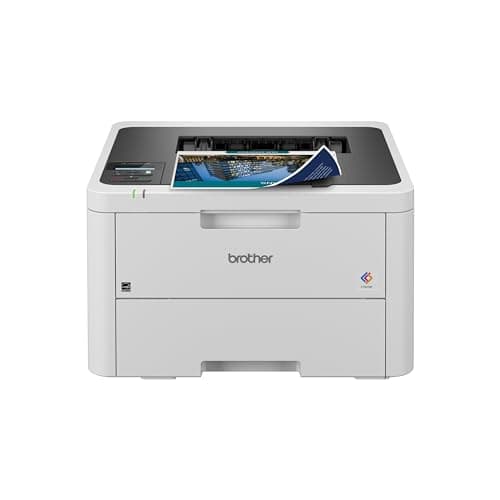
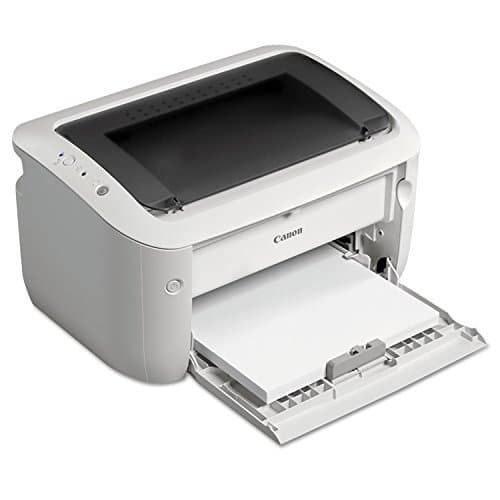
The printer to buy for a Chromebook is the Brother HL-L2460DW: Brother publishes AirPrint, Mopria and Wi-Fi Direct on it plus dual-band Wi-Fi, wired Ethernet and USB, which covers every connection route Google’s own Chromebook setup page describes. If you need to scan and copy, the MFC-L2820DW adds a 50-page feeder on the same standards. The budget pick is the Canon imageCLASS LBP6030w — cheapest to buy, one connection route, and the dearest pages on this site.
What makes a printer work well with a Chromebook?
Standards, not drivers. Google’s Chromebook Help page for setting up a printer states that “for most printers, the supported connection protocol is Internet Printing Protocol (IPP)”, that the queue is usually ipp/print, and that Chromebooks use PPD files which “are different from printer drivers”. It also says your printer and Chromebook must be on the same network, that USB printing is supported, and that a printer can be added manually by IP address. So the best Chromebook printer is the one with the most published, standards-based ways to be reached — network, wired and USB — rather than the one with the best vendor software.
How we picked
We read Google’s own setup page for this, because the whole subject is full of advice that predates Chrome OS’s current printing stack. Four questions followed from it.
- Does the maker publish standards-based network printing? Chrome OS wants IPP. The practical proxy is whether the manufacturer publishes AirPrint and Mopria support, which is what the standards-based route looks like on a specification sheet. We only list it where the maker publishes it; where our notes do not record it, we say so instead of assuming.
- Is there a wired port as a fallback? Google describes adding a printer manually by IP address. That is reliable when the address is stable, and a wired Ethernet connection is the easiest way to make it stable. Three picks here publish Ethernet.
- Can it be plugged in directly? Google says you can print over a USB cable and that a notification appears when you do. It also states that Chromebooks do not currently support Bluetooth printing, which is worth knowing before you buy anything on that basis.
- What does a page cost, and is there a subscription? The usual two questions on this site. Chromebooks are bought to avoid complexity and expense; a cheap body with a cartridge that costs more than most of the printer defeats half of that.
How Chrome OS actually prints
There is no Chrome OS driver to download, and that is the thing most people get wrong when shopping. Google’s page explains the mechanism plainly: Chromebooks use PPD files, which it describes as different from printer drivers and as telling the Chromebook “how to support a specific printer model”. For printers that are not saved automatically, the advanced flow lets you choose a manufacturer and model, or supply a PPD file yourself — Google states the file must be in .ppd or .gzip format and under 250 KB.
Three practical consequences. First, the printer’s own network capability is doing the work, so published support for the standards matters more than the vendor’s software. Second, Google says the printer and Chromebook must be connected to the same network, and that “it may take time for your Chromebook to recognize other printers or scanners on your network” — patience on first setup is normal. Third, when discovery does not cooperate, the manual route needs your printer’s IP address and usually the ipp/print queue, which is far easier on a printer with a wired port.
| Printer | Network standards published | Wired Ethernet | USB |
|---|---|---|---|
| Brother HL-L2460DW | AirPrint, Mopria, Wi-Fi Direct | Yes | Yes |
| Brother MFC-L2820DW | AirPrint, Mopria, Wi-Fi Direct, Mobile Connect | Yes | Yes (Hi-Speed USB 2.0) |
| Epson EcoTank ET-4950 | AirPrint, Mopria | Yes | Not recorded in our notes |
| Brother HL-L3220CDW | AirPrint, Mopria | Not recorded in our notes | Not recorded in our notes |
| Canon imageCLASS LBP6030w | Not recorded in our notes | No | Not recorded in our notes |
Every “yes” here is published by the manufacturer on the product page listed in our sources. Where our specification record does not carry a figure we say so rather than inferring it — absence from this table means we have not confirmed it, not that the feature is missing. Google’s own requirements are from Chromebook Help, read 21 November 2026.
Scanning from a Chromebook is a separate question
Printing and scanning are two different setups on Chrome OS, and Google’s printer page points at a separate scanner guide of its own. We have not tested Chrome OS scanning with any of these machines and will not claim it works. What we can say is the practical workaround: on the two all-in-ones here, copying happens on the printer with no computer involved, and the 50-page feeder on the MFC-L2820DW makes a multi-page copy a single operation.
If scanning to the Chromebook is essential, check Google’s own scanner compatibility list for the exact model before you buy, and treat a feeder as a convenience rather than a guarantee. Our document-feeder picks explain what a feeder does and does not do.
The classroom case
Chromebooks and classrooms go together, and a classroom changes two of the four criteria. Volume goes up, which makes cost per page the dominant number: at 500 pages a month the gap between 3.3 cents and 6.1 cents a page is about $34 a month, which buys a better printer in a term. And the machine gets left alone over holidays, which is the argument for toner over ink.
For a Chromebook cart that prints mostly worksheets, the HL-L2460DW with high-yield toner is the honest answer, with the MFC-L2820DW if copying matters. Our picks for teachers and the homework printers cover the household version of the same problem.